Automations · Square without cropping
Make photos square without cropping
Drop your photos and press Run. Each is made square by adding white at the sides, so nothing is cut off, then sized to 1080 px for posting. Free, no account.
- Free
- No account
- Nothing cut off
- White or blurred
- Whole batches
- On your device
What’s wired up above
- Picturesdrop yours here
- Extend canvassquare, white at the sides
- Resize1080 px, never enlarged
- FormatJPEG at 92%
- Savenamed “name-square”
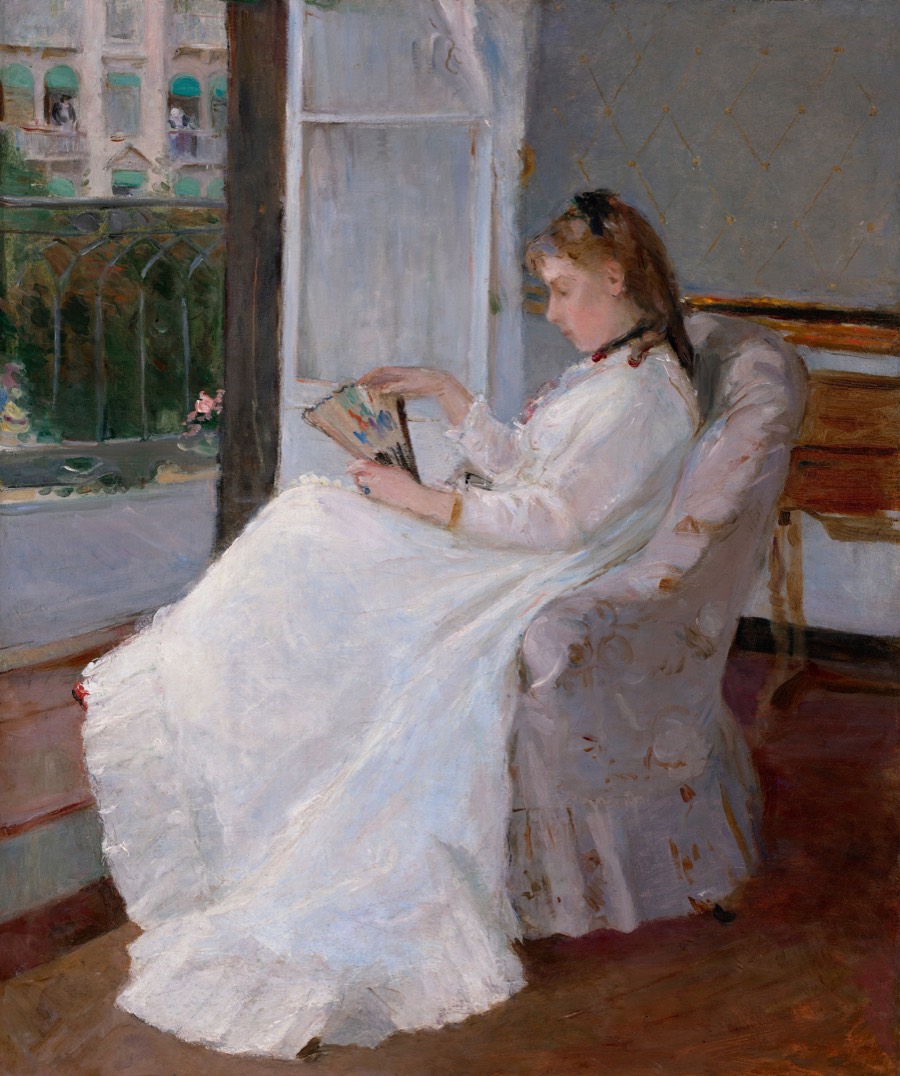
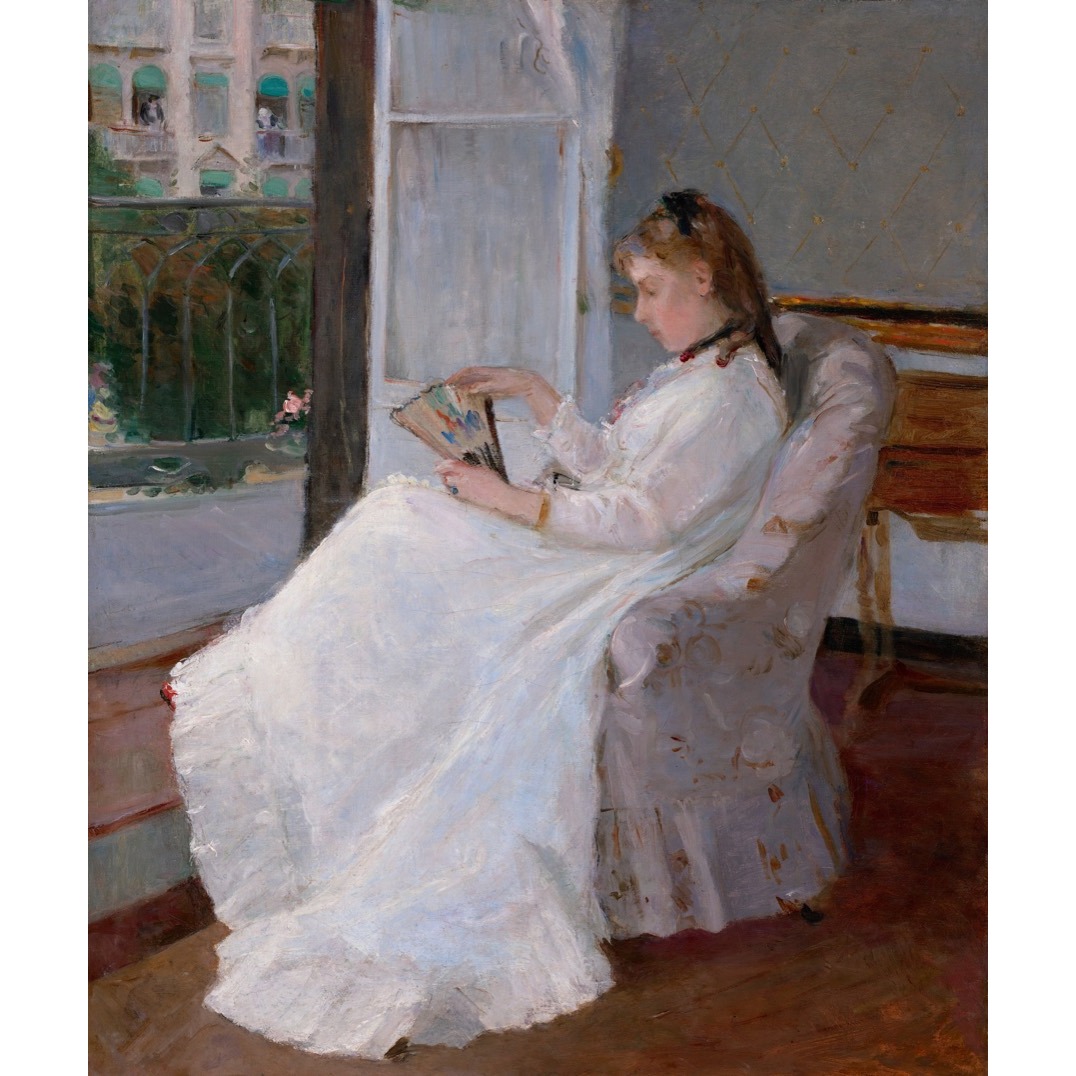
Example: Berthe Morisot, The Artist’s Sister at a Window, 1869, National Gallery of Art (public domain). It’s 1076 px tall, so it stays 1076: Resize never enlarges a photo unless you ask it to.
This is one automation in Weekend Studio’s node editor. Every step is a node you can change, and you can add more: a border, a look, your name, a second shape.
See how it worksHow to make a photo square without cropping
Add your photos
Drop them in the Pictures box on the left, or press Upload.
Pick the fill
Click Extend canvas: a color, a blurred copy of the photo, or another picture.
Set the size
Click Resize for another size.
Run
Press Run: one photo downloads as itself, several as one zip.
Three ways to fill the sides
- Color
- White to start with, or any color you choose: black for a gallery look, a soft gray, or your brand’s own color.
- Blurred copy
- The photo itself, enlarged to fill the square and blurred behind it, the look a phone gives a tall photo. Blur sets how soft it is.
- Picture behind
- Join any picture to the node’s Behind input, a texture or a pattern, and it fills the room instead.
Square, or another shape
Square is one shape. Click Extend canvas for another ratio, such as 4:5 for an Instagram feed post, or a preset such as Instagram story (9:16), and the same room is added to reach it.
A photo that’s already the shape is left as it is. The room is added evenly, so your photo sits in the middle, with the same amount of white on each side.
Making a set for a grid? Every photo in a run gets the same shape and the same fill, so they line up.
Not cropping, on purpose
Cropping a tall photo to a square cuts off its top and bottom. Extend canvas does the opposite: it keeps every pixel of your photo and adds room around it. Use it for artwork, screenshots, group photos and anything where the edges matter: a painting with its signature in the corner, a receipt, a chart, a whole band in a line.
Would you rather crop? Crop images to square frames each photo on its face or subject.
The file
A JPEG at 92%, 1080 px square, named after your photo with “-square” on the end. Click Format for PNG or WebP, and Resize for another size, such as 2048 px for a print or a portfolio.
Your originals are never changed: the results are new files.
Other recipes
- Square crops
A square around each photo’s face or subject, then sized for posting.
- Batch crop
Any ratio or social size, each framed on its subject, or one crop for all.
- White background
Product photos on pure white, made square, 2000 px, for a shop listing.
- Watermark photos
Your name, the year or your logo on every photo, in the same corner.
Questions
Is it free?
Yes. Making your photos square and saving them is free, with no account, however many photos there are.
Does it cut anything off?
No. Extend canvas only adds room around your photo, so every pixel of it is still there.
Can I use a blurred background instead of white?
Yes. Click Extend canvas and set Fill to Blurred copy. Blur sets how soft it is.
Can I make them 4:5 or 9:16 instead?
Yes. Click Extend canvas and pick another ratio, or a preset such as Instagram story.
Will a small photo be enlarged to 1080 px?
No. Resize never enlarges a photo unless you turn on Enlarge small pictures.
Which files can I use?
JPEG, PNG, WebP, HEIC photos from an iPhone, and most other pictures your browser can open.
Are my photos uploaded?
No. Everything runs in your browser, on your device.
Build your own
This recipe is a few nodes in Weekend Studio’s node editor. Add a border, a look, a caption or a second shape, and it all runs in one go.
See how it worksMore free tools
Automations is one of the free Widgets in Weekend Studio Tools, with the image converter, the gallery maker and the PBR Texture Generator.
Open Tools Read the Tools docs