Weekend Studio · Tools · Photo Markup
Combine screenshots
Put two or three screenshots side by side, or one above the other, in one picture: with a gap, a background, and rounded corners on each. Free, in your browser, no account needed, and your screenshots aren’t uploaded.
- Free
- No account
- Not uploaded
- Up to three
- Side by side or stacked
- Made for phones
How it works
Pick your screenshots
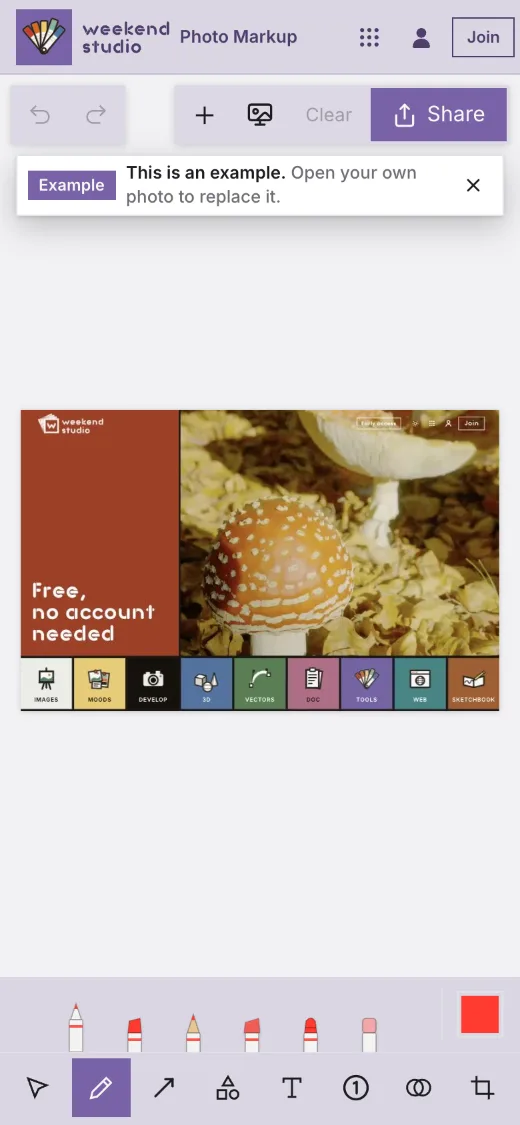
The page opens on an example. Press + and pick two or three screenshots at once: they’re put side by side straight away, on a background. Pick one and + offers to add the next.
Arrange them
Press the background button: Side by side or Stacked, the gap, the background, the corners and the shadow. Take out the last removes one.
Point things out
Add arrows, boxes, text and numbered steps across them, and blur what shouldn’t show. Marks move with their screenshot when you change the layout.
Share it
Press Share for your phone’s share sheet, or Save Image to keep it in Photos. On a computer, Save downloads it.
What you can do
Two or three in one
Pick them together and they’re combined at once. Up to three in one picture.
Side by side or stacked
Side by side, each as tall as the first; stacked, each as wide as the first.
A gap you choose
A slider sets the space between them, from touching to wide.
A background, if you like
On by default, with rounded corners and a shadow on each screenshot. Choose None for just the screenshots.
Marks across them
An arrow from one screenshot to the next, numbered steps on each. Change the layout and each mark moves with its screenshot.
Before and after
Two screenshots side by side make a before and after in one picture, ready for a message or a post.
On a phone or a computer
- Room for the picture
- The tools sit in one row at the bottom, with Undo, +, the background, Clear and Share over the top of the picture. With the background choices open, the picture moves up so you can see it.
- Fingers and the Pencil
- One finger uses the tool; two fingers pinch to zoom and pan. Tap with two fingers to undo, three to redo. Once you draw with an Apple Pencil, your fingers only move the picture.
- Full size
- The picture is saved at its own size, up to 16 megapixels, which is as large as a phone’s browser can draw. A larger one is scaled down to that.
Questions
Is it free?
Yes. It runs in your browser with no account, and sharing or saving the picture is free.
Are my screenshots uploaded?
No. They’re combined in your browser, on your device. They go somewhere only when you share or save the picture.
How many screenshots can I combine?
Up to three in one picture. Pick them together, or add them one at a time with + › Add a picture beside or below.
Can I put them one above the other?
Yes. Press the background button and choose Stacked. Side by side makes each as tall as the first; stacked makes each as wide as the first.
What file do I get?
Screenshots (PNG) give a PNG; with a photo among them it’s a JPEG. Without a background, the gap is clear in a PNG and white in a JPEG. The location and camera details aren’t copied into it.
Add a background to a screenshot
One screenshot on a background with padding, rounded corners and a shadow, ready to post.
Open itPhoto Markup
The whole editor: arrows, boxes, text, numbered steps, five pens, Blur, Spotlight, a loupe and crop, on any photo or screenshot.
Open Photo Markup