Automations · Batch crop
Crop a batch of photos to one shape
Drop your photos and press Run. Each is cropped to 16:9 around its face or subject and saved, or pick another ratio first. Fix any crop by hand. Free, no account.
- Free
- No account
- Any ratio
- Social sizes
- Finds faces
- One crop for all
What’s wired up above
- Picturesdrop yours here
- Crop16:9, on Auto
- FormatJPEG at 92%
- Savenamed “name-crop”
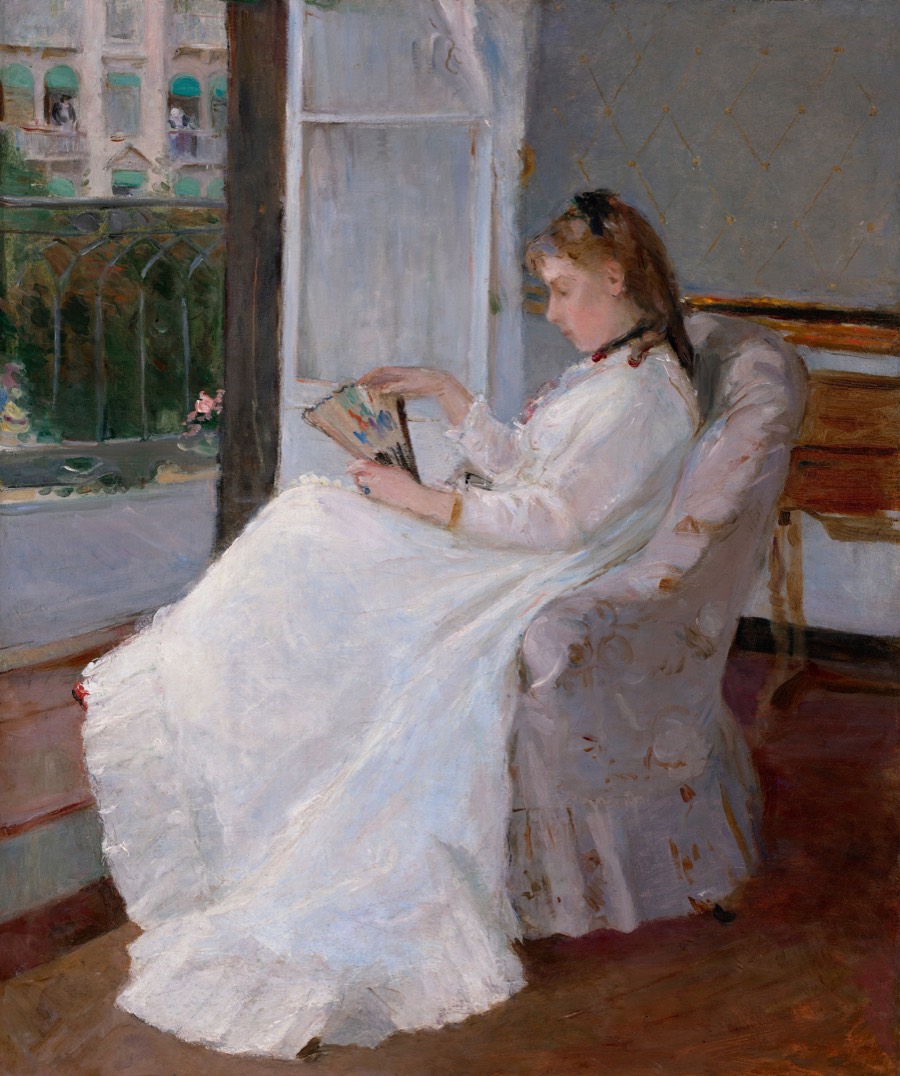
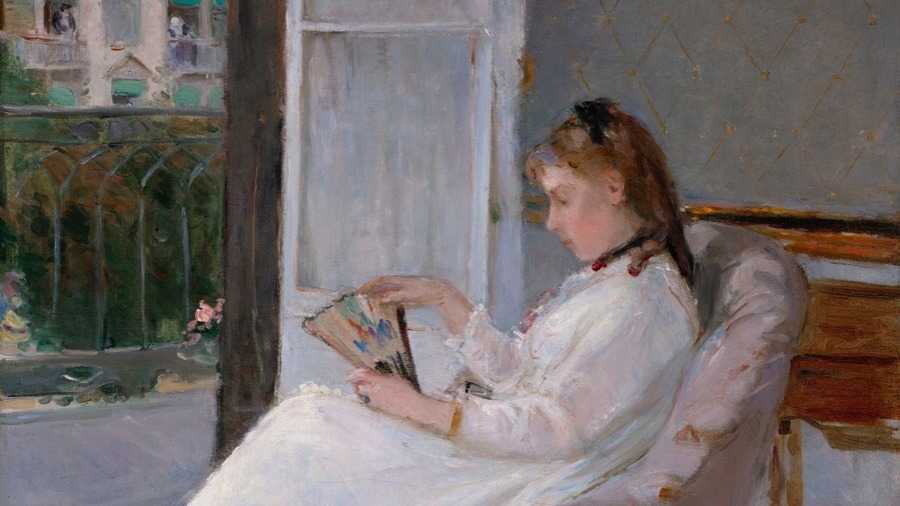
Example: Berthe Morisot, The Artist’s Sister at a Window, 1869, National Gallery of Art (public domain).
This is one automation in Weekend Studio’s node editor. Every step is a node you can change, and you can add more: a resize, a look, a border, a logo.
See how it worksHow to crop many photos at once
Add your photos
Drop them in the Pictures box on the left, or press Upload.
Pick the shape
Click Crop and choose a ratio or a social size.
Check the crops
Each photo’s preview shows its crop. Drag a box to frame one yourself.
Run
Press Run: one photo downloads as itself, several as one zip.
Ratios and sizes
The ratios: 1:1, 4:5, 3:4, 3:2, 2:3, 16:9 and 9:16, or Free for a box of any shape.
Or a preset, which sets the exact size too: Instagram post (1080 × 1080, 4:5 at 1080 × 1350, 3:4 at 1080 × 1440), Instagram story and TikTok (1080 × 1920), YouTube thumbnail (1280 × 720), Facebook and LinkedIn posts (1080 × 1350), X post (1600 × 900) and Pinterest pin (1000 × 1500).
How Auto frames each one
First it looks for faces, with a small face-finding model on your device, and keeps them all in the frame. With no face, it looks where the detail, color and skin are. When nothing stands out, it uses the spot you set in Keep: the center, a side or a corner. Top keeps heads.
Drag a box on any photo’s preview and that photo keeps your crop. The Contact sheet shows every crop at once.
One crop for all of them
Turn on Same crop for all and the box you draw on one photo is used on every photo. That’s the one to use for scans, screenshots or a series shot from a tripod, where the part you want is in the same place each time.
Zoom, straighten, more shapes
Zoom tightens every crop, up to 400%. Rotate straightens a tilted photo by up to 45°, and the crop never shows a blank corner. To turn a photo a quarter turn, see rotate images.
Add more Crop nodes from the same Pictures and each photo comes out in every shape, each its own file.
Your originals are never changed: the results are new files.
Other recipes
- Square crops
A square around each photo’s face or subject, then sized for posting.
- Square without cropping
Photos made square by adding white or a blurred copy at the sides.
- Resize photos
A whole batch made 2048 px on its long side, or any size, as JPEG, PNG or WebP.
- Rotate photos
A batch turned 90° or 180°, or flipped, all at once.
Questions
Is it free?
Yes. Cropping and saving your photos is free, with no account, however many photos there are.
Can I crop them all exactly the same?
Yes. Click Crop, turn on Same crop for all, and draw the box on one photo. Every photo gets that crop.
Can I crop to an exact pixel size?
Yes. A preset such as YouTube thumbnail sets the size as well as the shape. For any other size, add a Resize node after the crop.
How does it know where to crop?
On Auto it looks for faces first, then for where the detail, color and skin are. When it isn’t sure, it uses the spot you set in Keep.
Can I fix one photo’s crop?
Yes. Drag the box on that photo’s preview. Only that photo changes.
Which files can I crop?
JPEG, PNG, WebP, HEIC photos from an iPhone, and most other pictures your browser can open. A HEIC is made readable first, on your device.
Are my photos uploaded?
No. The crops are made in your browser, on your device.
Build your own
This recipe is a few nodes in Weekend Studio’s node editor. Add a second shape, a resize, a look or a logo, and it all runs in one go.
See how it worksMore free tools
Automations is one of the free Widgets in Weekend Studio Tools, with the image converter, the gallery maker and the PBR Texture Generator.
Open Tools Read the Tools docs