
Automations · Rotate photos
Rotate or flip a whole batch of photos
Drop your photos and press Run. Each is turned 90° to the right and saved, or pick 180°, 90° to the left, or a flip first. Free, no account.
- Free
- No account
- 90° or 180°
- Flip or mirror
- Whole batches
- On your device
What’s wired up above
- Picturesdrop yours here
- Rotate & flip90° to the right
- FormatJPEG at 95%
- Savenamed “name-rotated”
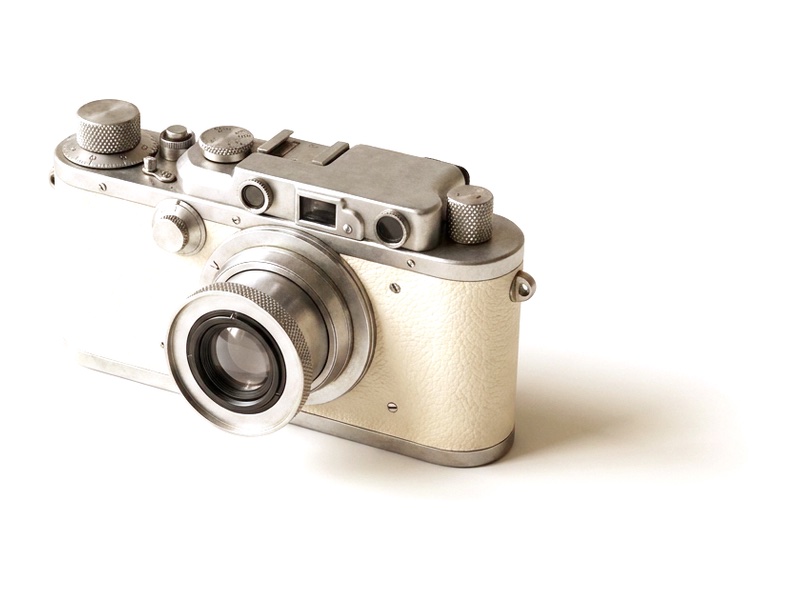
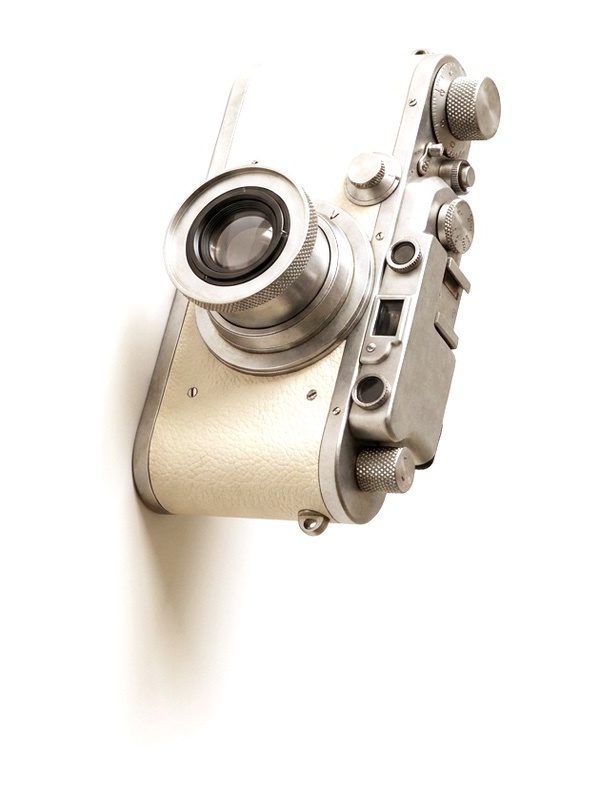
Example: one of Weekend Studio’s own product photos.
This is one automation in Weekend Studio’s node editor. Every step is a node you can change, and you can add more: a crop, a resize, a look, a logo.
See how it worksHow to rotate many photos at once
Add your photos
Drop them in the Pictures box on the left, or press Upload.
Pick the turn
Click Rotate & flip: 90° right, 180° or 90° left.
Flip if you like
Turn on Flip horizontally to mirror, or Flip vertically to turn upside down.
Run
Press Run: one photo downloads as itself, several as one zip.
Turns and flips
- Turn
- 90° right, 180° or 90° left. A quarter turn swaps the photo’s width and height.
- Flip horizontally
- Left becomes right: a mirrored selfie put back the right way, or text that reads backward.
- Flip vertically
- Top becomes bottom.
Every pixel is moved, none is made: a quarter turn is exact, with no blur. A turn and a flip can go together, the turn first, then the flip, so a scan that came out upside down and mirrored is put right in one step.
Already upright from the camera
Phones and cameras save how they were held as a note in the file, and Weekend Studio reads it when the photo opens. So a phone photo comes in the right way up, the way your phone shows it, and the turn here is for the ones that are still wrong.
The saved file is turned for real, so it looks the same in every app.
The file
A JPEG at 95%, named after your photo with “-rotated” on the end. Every time a JPEG is saved it loses a little, and at 95% that’s very little. For a copy that keeps every pixel as it opened, click Format and pick PNG. PNG files are bigger.
A tilted horizon?
Straightening is a small turn, up to 45°, and it needs a crop so no corner comes out blank. That’s in Crop’s Rotate setting: see batch crop images.
Every photo in a run gets the same turn. If only some of them are sideways, run those on their own.
The saved copies carry none of the original’s metadata, such as the camera, the date or the place. Keep your originals if you need it.
Other recipes
- Batch crop
Any ratio or social size, each framed on its subject, or one crop for all.
- Resize photos
A whole batch made 2048 px on its long side, or any size, as JPEG, PNG or WebP.
- Upscale
Small photos made 2×, 3× or 4× bigger with AI upscaling, on your device.
- Watermark photos
Your name, the year or your logo on every photo, in the same corner.
Questions
Is it free?
Yes. Rotating and saving your photos is free, with no account, however many photos there are.
Does rotating lose quality?
The turn itself is exact. Saving a JPEG again loses a little, very little at 95%. Pick PNG in Format to keep every pixel.
How do I mirror a photo?
Click Rotate & flip, set Turn to None and turn on Flip horizontally.
My phone photos look sideways in some apps. Will this fix them?
Weekend Studio reads the turn your phone saved, so they open the right way up here, and the saved copy is upright in every app. Set Turn to None to only fix that.
Which files can I rotate?
JPEG, PNG, WebP, HEIC photos from an iPhone, and most other pictures your browser can open. The copies come out as JPEG, or PNG or WebP if you pick it in Format.
Can I rotate by a few degrees?
Yes, by up to 45° with Crop’s Rotate setting, which crops so no corner is blank.
Are my photos uploaded?
No. Everything runs in your browser, on your device.
Build your own
This recipe is a few nodes in Weekend Studio’s node editor. Add a crop, a resize, a look or your logo, and it all runs in one go.
See how it worksMore free tools
Automations is one of the free Widgets in Weekend Studio Tools, with the image converter, the gallery maker and the PBR Texture Generator.
Open Tools Read the Tools docs