
Automations · Upscale
Upscale an image with AI, on your device
Drop a small photo and press Run. It comes back twice the size, sharper than a plain enlargement, with skin and texture kept rather than airbrushed, made by an AI model that runs in your browser. Free, nothing uploaded.
- Free
- No upload
- No account
- 2×, 3× or 4×
- Whole batches
- AI, labeled in the file
What’s wired up above
- Picturesdrop yours here
- Upscale2×, with AI, then a light sharpen
- FormatJPEG at 95%
- Savenamed “name-upscaled”
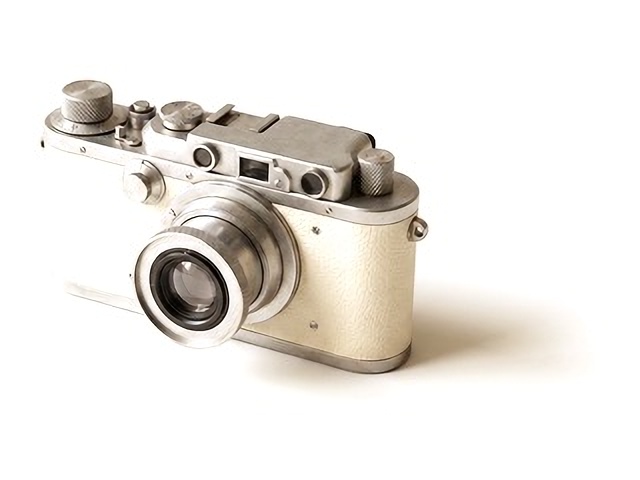
Example: one of Weekend Studio’s own product photos at 320 × 240, made 640 × 480 both ways. On the left, Resize with Enlarge small pictures on; on the right, this recipe.
This is one automation in Weekend Studio’s node editor. Every step is a node you can change, and you can add more: a crop, a resize, sharpening, a look.
See how it worksHow to upscale a photo
Add your photo
Drop it in the Pictures box on the left, or press Upload. Several work too.
Pick the size
Click Upscale: 2×, 3× or 4×.
Look closely
Open the larger preview to see the detail before you run it.
Run
Press Run: one photo downloads as itself, several as one zip.
What does the upscaling
Swin2SR, an open model made to enlarge pictures faithfully (its lightweight 2× model, Apache-2.0), runs in your browser. It’s 13 MB, downloaded from Weekend Studio once, the first time.
It makes the picture twice its size and keeps what’s there: skin, hair and fabric stay themselves instead of being smoothed into paint. 3× and 4× are that 2× enlarged the rest of the way, so they take no longer. A compressed JPEG’s square blocks are smoothed first, by itself, so the model doesn’t sharpen them. Then a light sharpen, 30% to start with; set Sharpen on the step for more or none. The picture is done in tiles, so a big one doesn’t run out of memory, and the tiles meet without seams.
It’s AI, and the file says so
An upscaler adds detail the picture didn’t have: its best guess at what was there. That’s what makes it look sharp, and why it can get a word or a fine pattern wrong. So it’s marked as AI: each JPEG or PNG it makes says “AI edited” in its metadata (IPTC Digital Source Type, in XMP), and nothing is drawn on the picture.
A WebP carries no such note yet. Saved to Weekend Studio Cloud, any file it made is recorded as AI edited.
How big, how fast
Up to 36 megapixels, 6000 × 6000; on an iPhone or iPad, 16.7, the most a picture can be there. A bigger result is made as big as that allows, and a photo already that size says so. Upscaling is for small pictures: a 1000 px photo at 4× is 4000 px.
With WebGPU (Chrome or Edge on a computer), an 800 × 600 photo took about 6 seconds on a Mac and a 1024 × 1024 one about 10, whether 2×, 3× or 4×. On the processor, as in Safari, it’s several times slower. The step’s preview reads a 512 px copy so it comes back quickly, and Run makes the real thing at full size.
Or a plain enlargement
Resize with Enlarge small pictures on makes a picture bigger without AI: nothing is added, so it’s soft, as on the left above. It’s instant, and the right choice when nothing may be invented, such as a document.
Your originals are never changed: the results are new files.
Other recipes
- Resize photos
A whole batch made 2048 px on its long side, or any size, as JPEG, PNG or WebP.
- Remove background
One photo’s background made transparent, its edges checked and fixed by hand.
- Rotate photos
A batch turned 90° or 180°, or flipped, all at once.
- Pixel art
Photos into pixel art with real palettes: PICO-8, Game Boy, NES, C64 and more.
Questions
Is it free?
Yes. Upscaling and saving your photos is free, with no account and no credits. It runs on your own device, so it costs nothing to run.
Is it AI?
Yes. Swin2SR is an AI model, and it adds detail that wasn’t in the photo. The JPEG or PNG it makes says “AI edited” in its metadata. Nothing is drawn on the picture.
Is my photo uploaded?
No. The model runs in your browser, on your device. Only the model comes down, once, from Weekend Studio.
How big can it go?
Up to 4×, and up to 36 megapixels (16.7 on an iPhone or iPad). A bigger result is made as big as that allows.
Can it fix a blurry photo?
It sharpens edges and makes a small photo bigger without smoothing it. It can’t bring back detail that a shake or a missed focus never caught.
How long does it take?
About 6 seconds for an 800 × 600 photo and about 10 for 1024 × 1024, at any size, with WebGPU, as in Chrome or Edge on a computer. Without WebGPU, as on most phones and in Safari, it runs on the processor and takes several times longer.
Build your own
This recipe is a few nodes in Weekend Studio’s node editor. Add a crop, sharpening, a look or a second size, and it all runs in one go.
See how it worksMore free tools
Automations is one of the free Widgets in Weekend Studio Tools, with the image converter, the gallery maker and the PBR Texture Generator.
Open Tools Read the Tools docs