Automations · Compress images
Compress images
Drop your pictures and press Run. Each is saved again as a JPEG at 75% quality, usually far smaller. Need them under a size? Type it, and each is made to fit. Nothing is uploaded.
- Free
- No upload
- No account
- Whole batches
- Quality 30 to 100%
- Under a size you type
What’s wired up above
- Picturesdrop yours here
- FormatJPEG at 75%
- Savenamed “name-compressed”
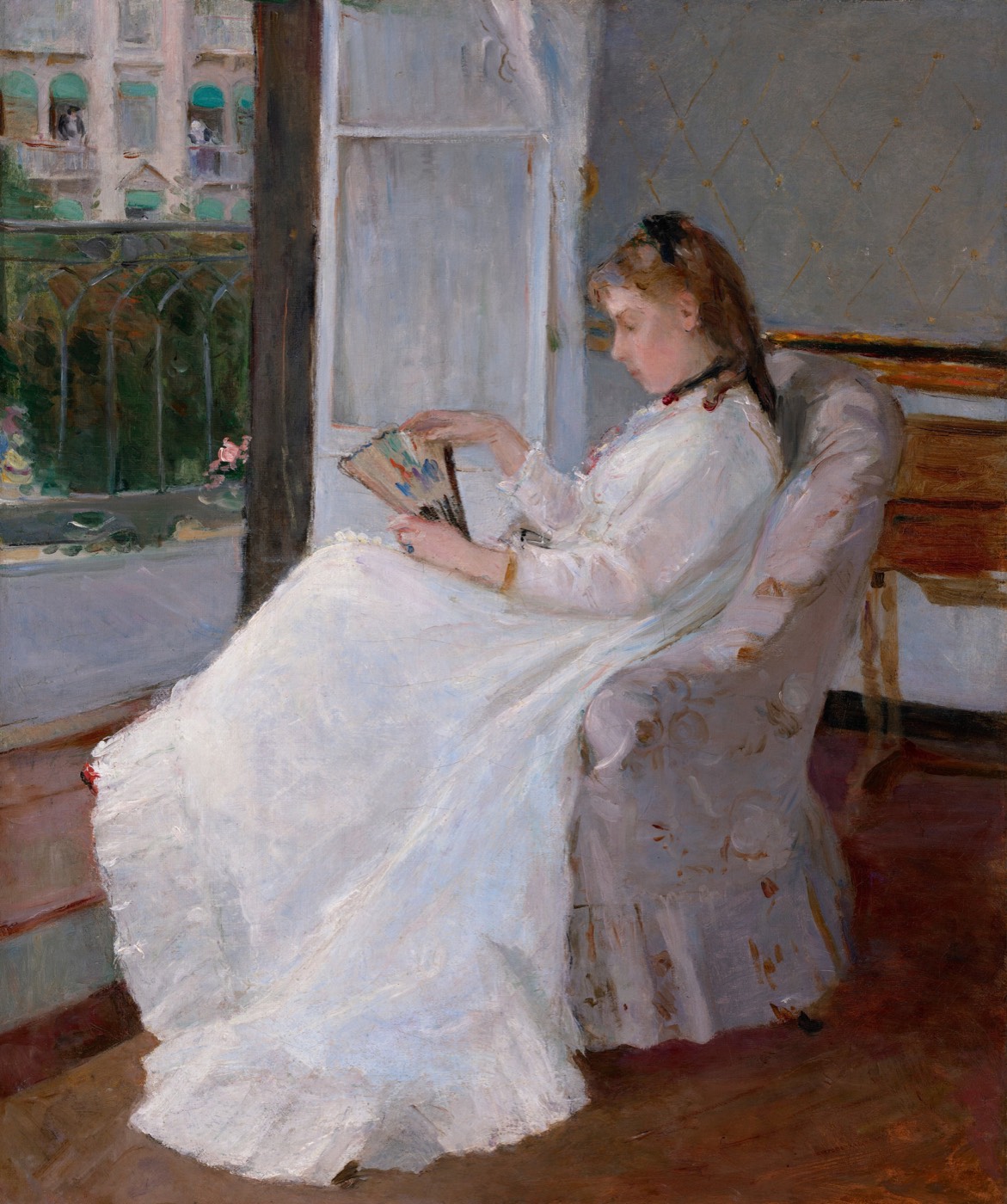
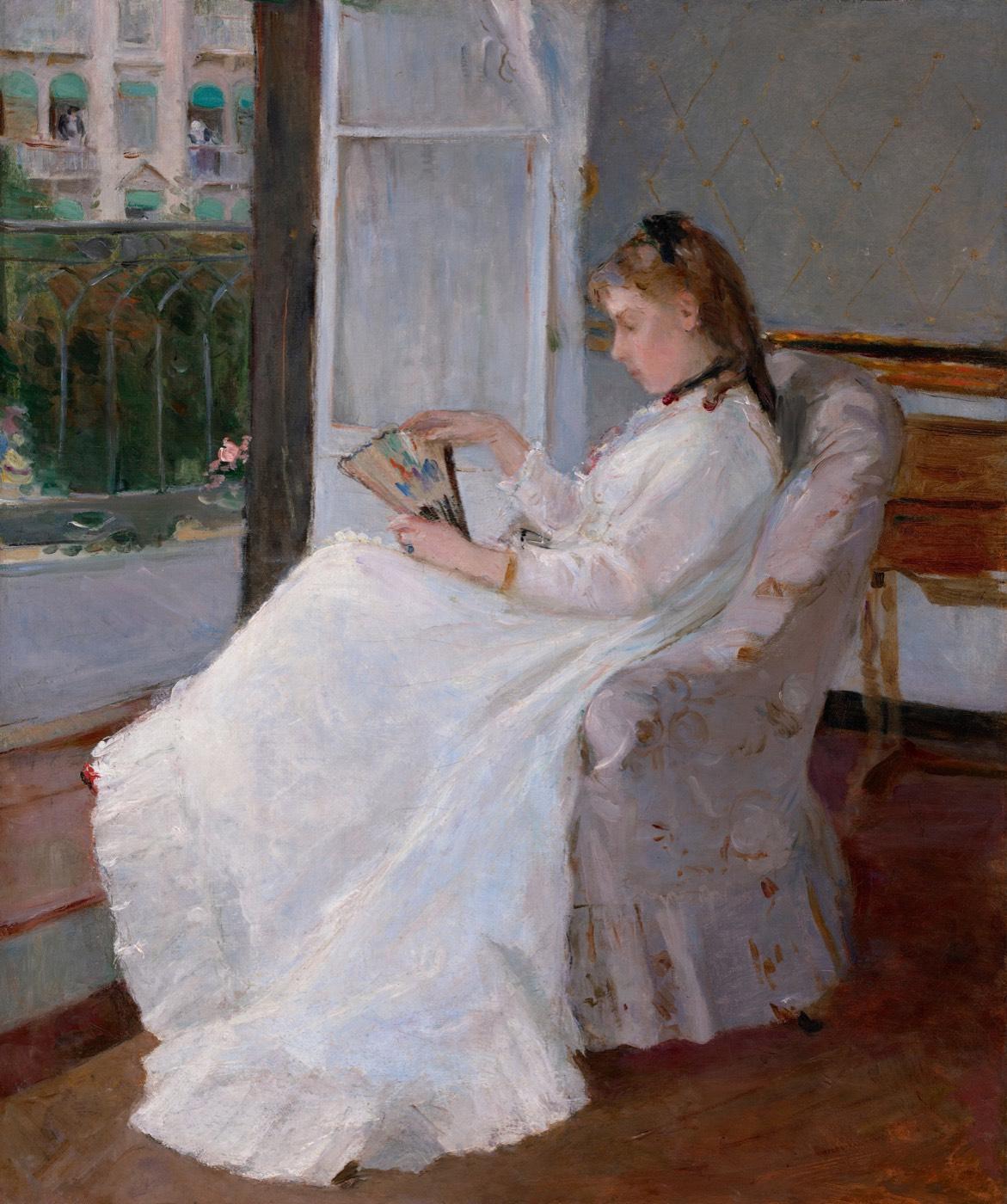
Example: Berthe Morisot, The Artist’s Sister at a Window, 1869, National Gallery of Art (public domain), 1171 × 1400. Sizes measured with this page’s own recipe in Chrome. Another browser’s files differ a little.
This is one automation in Weekend Studio’s node editor. Every step is a node you can change, and you can add more: a resize, a crop, a watermark, a second file type.
See how it worksHow to compress an image
Add your pictures
Drop them in the Pictures box on the left, or press Upload.
Set how small
Click Format. Lower Quality, or type a size in Max size.
Run
Press Run. When it’s done it says what the files weigh now, and what they weighed before.
Two ways to make it smaller
- Quality
- A slider from 30 to 100%. Lower means a smaller file and a rougher picture. 75%, where this starts, is hard to tell from the original for most photos.
- Max size
- A size in KB that each file must fit, for a form that says “under 200 KB”. 0 means no limit.
That’s all there is: a quality and a size. There’s no hidden trick, and nothing is uploaded to a server that does more.
What quality does to one photo
The 1171 × 1400 portrait above, 351 KB to begin with:
| Saved as | Size |
|---|---|
| JPEG at 90% | 362 KB |
| JPEG at 75% | 204 KB |
| JPEG at 60% | 131 KB |
| JPEG at 40% | 87 KB |
| WebP at 75% | 105 KB |
A photo that was already compressed can come out bigger at a high quality: this one at 90%. Go lower than the original was saved at, or set a size.
How Max size fits a picture
Each picture is first saved at your Quality. If that’s over the size, quality comes down, but never below 50%: past that a JPEG turns blocky. If it’s still too big at 50%, the picture itself is made smaller, a step at a time, until the file fits.
The same portrait, starting from 75%:
| Max size | The file | The picture |
|---|---|---|
| 200 KB | 185 KB | 1171 × 1400, lower quality |
| 100 KB | 87 KB | 1082 × 1293 |
| 50 KB | 49 KB | 765 × 915 |
| 20 KB | 19 KB | 450 × 538 |
A small picture is never made bigger to reach a size, and a file already under it is left at your Quality.
PNG, WebP and transparency
- The recipe saves JPEGs
- So a PNG you drop in becomes a JPEG, and its transparent parts become white.
- To keep transparency
- Click Format and set File type to WebP. It’s smaller than JPEG at the same quality and stays transparent. Safari can’t save WebP: there, the run stops and says so.
- PNG itself
- A PNG is lossless, so it has no quality to lower and Max size doesn’t apply. To shrink one and keep it a PNG, make it fewer pixels: resize it.
Fewer pixels is the biggest saving
A 12-megapixel phone photo shown 1200 pixels wide on a web page is carrying ten times the pixels anyone sees. Halving a picture’s width and height cuts the file to about a quarter before quality comes into it.
Add a Resize node before Format for that, or start from the resize recipe, which makes each picture 2048 pixels on its long side.
What else changes
The new file holds the picture and nothing else: camera details and a location saved in the original aren’t copied into it. That takes a little off the size too.
A photo that a phone saved on its side is turned the right way up first, so it opens upright everywhere.
Your originals aren’t changed or deleted. Each new file has “-compressed” on the end of its name.
Other recipes
- Resize photos
A whole batch made 2048 px on its long side, or any size, as JPEG, PNG or WebP.
- PNG to WebP
PNGs saved as much smaller WebP files, their transparency kept.
- PNG to JPG
PNGs saved as JPEGs, with white where they were transparent.
- WebP to JPG
WebP pictures saved as JPEGs that every app and form accepts.
Questions
Is it free?
Yes. Converting and saving is free, with no account and no limit on how many pictures. It runs on your own device, so it costs nothing to run.
Are my pictures uploaded?
No. They’re opened, converted and saved in your browser, on your device.
Can I compress an image to 100 KB or 200 KB?
Yes. Click Format and type the size in Max size. Quality is lowered to fit, never below 50%; if that isn’t enough, the picture is made smaller until the file fits.
How much quality is lost?
At 75%, where this starts, most photos look the same. The lower you go, the more blocks and haze show, mostly around sharp edges and text.
Why did my file get bigger?
It was already compressed harder than the quality you chose. Saving it again at a higher quality can’t add detail, only size. Pick a lower Quality or set Max size.
Can it compress a PNG?
Not as a PNG: PNG is lossless, so there’s no quality to lower. Save it as a WebP, which keeps transparency, or as a JPEG, or resize it.
Can I compress many pictures at once?
Yes. Drop as many as you like. They’re saved one after another and downloaded together as one zip.
Build your own
This recipe is three nodes in Weekend Studio’s node editor. Put a Resize before Format, or add a second Format for a WebP copy of every picture, and it all runs in one go.
See how it worksMore free tools
Automations is one of the free Widgets in Weekend Studio Tools, with the image converter, the gallery maker and the PBR Texture Generator.
Open Tools Read the Tools docs