
Automations · Blur background
Blur the background of a photo
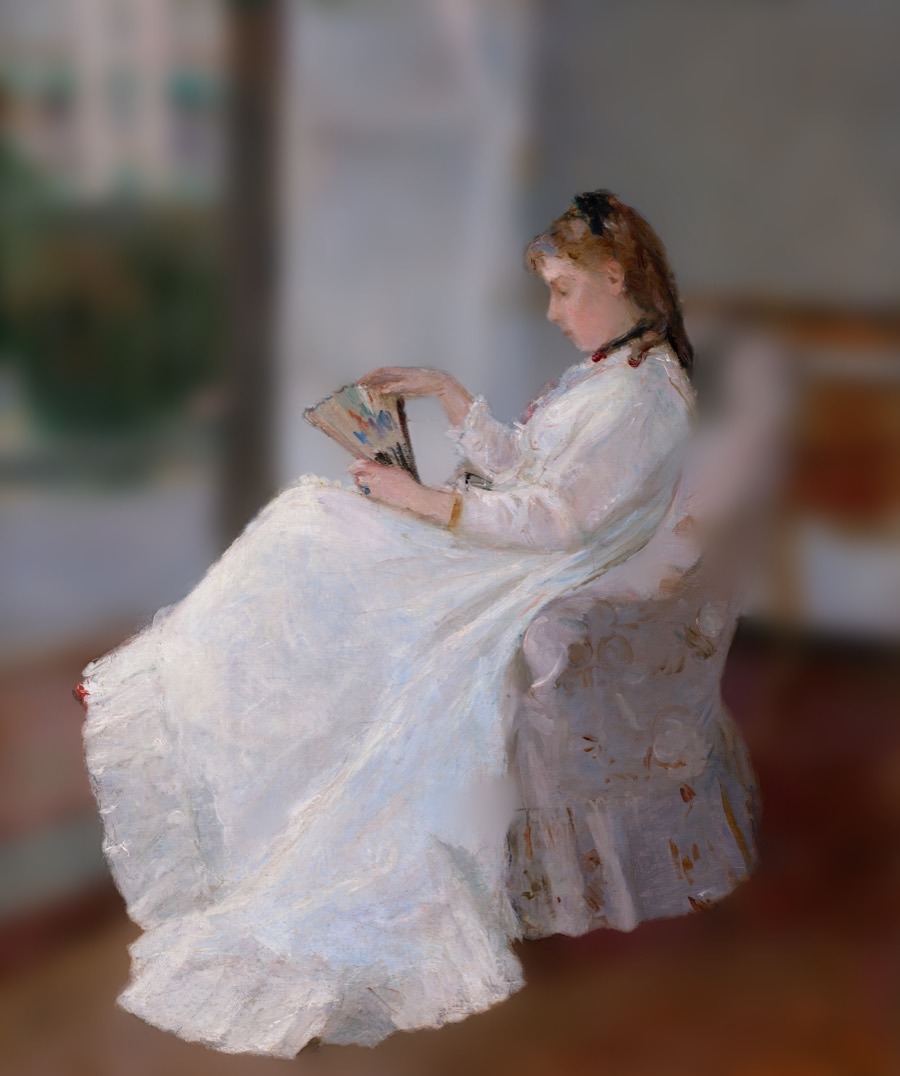
Drop a photo and press Run. The person stays sharp and everything behind them is blurred, with no glow at the edge. One photo or a whole batch, on your own device.
- Free
- No upload
- No account
- Sharp edges
- Whole batches
- Fix it with one line
What’s wired up above
- Picturesdrop yours here
- Remove backgroundfinds the person
- Adjust maskinverted: the background
- Blur1.5%, only on the background
- FormatJPEG at 92%
- Savenamed “name-blur”
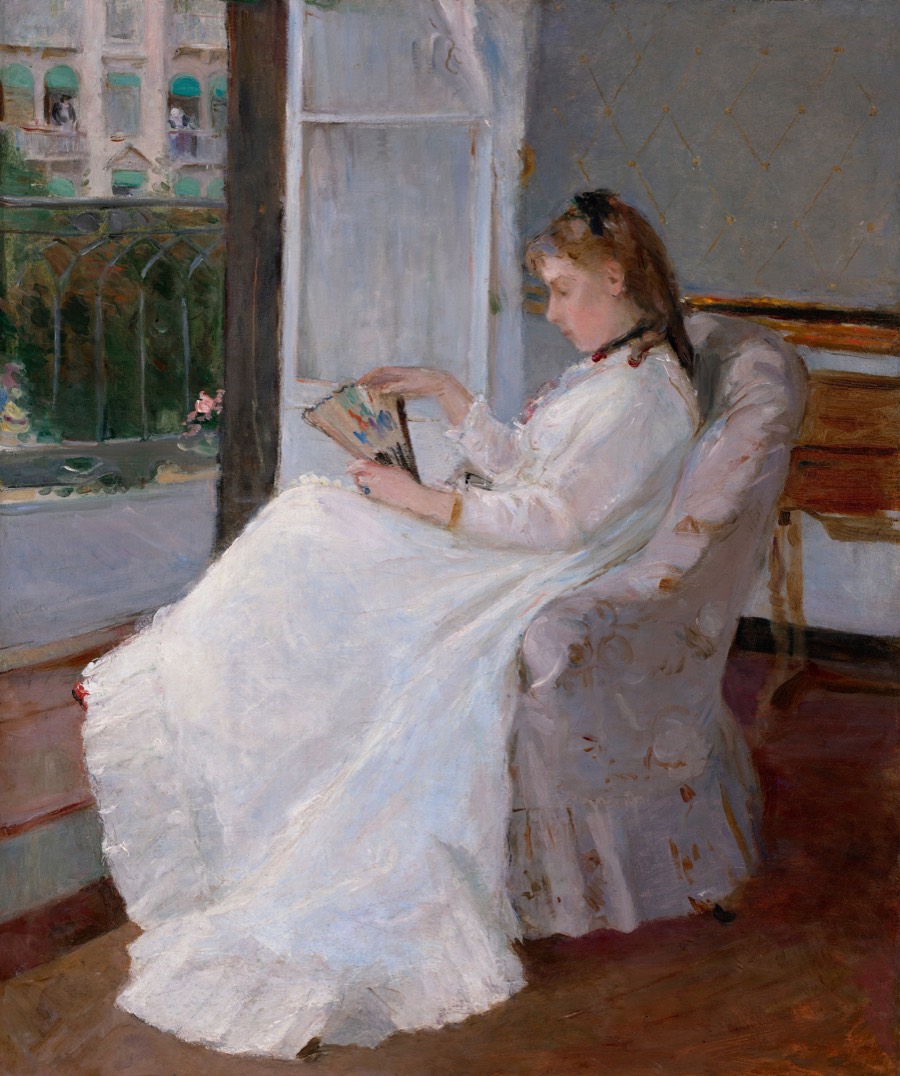
Example: Berthe Morisot, The Artist’s Sister at a Window, 1869, National Gallery of Art (public domain).
This is one automation in Weekend Studio’s node editor. Every step is a node you can change, and you can add more: a look, a crop, a border, a logo.
See how it worksHow to blur the background
Add your photo
Drop it in the Pictures box on the left, or press Upload. Several work too.
Set the blur
Click Blur and drag Amount.
Check the edge
Click Remove background to see what counts as the person. Press Add or Remove and draw across any mistake.
Run
Press Run: one photo downloads as itself, several as one zip.
How it works
Remove background finds the person and hands over their shape as a mask. Adjust mask inverts it, so it’s everything but the person. Blur then blurs only there.
The blur is made from the background alone. Most quick blurs smear the whole photo and lay the sharp person back on top, which leaves a glow of their colors round them. Here the person’s pixels never go into the background’s blur, so the edge stays clean.
Setting the look
- Amount
- How soft the background is, as a share of the photo’s short side, from 0 to 10%. 1.5% to start with. The same setting looks the same on a small photo and a big one.
- Softness
- On Adjust mask: how gradually the sharp person turns into the blur.
- Subject
- People to start with. Set it to Anything for a product, a pet or a plate of food.
What it isn’t
A camera’s background blur grows with distance: things far behind are softer than things close behind. This is an even blur of everything that isn’t the person, the look of a portrait mode, without the depth.
The finder is a small model that runs on your device (People about 26 MB, Anything about 180 MB, each downloaded once). It only decides which pixels are the person. Nothing is painted in.
When it gets one wrong
Hair, hands and things a person holds are where any finder slips. Click Remove background, press Add under the preview and draw across what should stay sharp, or Remove and draw across what should be blurred: the whole thing under the line changes. The fix belongs to that photo alone.
Edges on the same node changes how the outline follows the person: Soft, Sharp, or Hair & fur.
Other recipes
- Remove background
One photo’s background made transparent, its edges checked and fixed by hand.
- Remove backgrounds
Cut out the subject of every photo in a batch and save transparent PNGs.
- Square crops
A square around each photo’s face or subject, then sized for posting.
- Upscale
Small photos made 2×, 3× or 4× bigger with AI upscaling, on your device.
Questions
Is it free?
Yes. Blurring the background and saving the photo is free, with no account and no credits.
Is my photo uploaded?
No. The person is found and the background blurred in your browser, on your device. Only the model comes down, once.
Can I make the blur stronger?
Yes. Click Blur and drag Amount, up to 10% of the photo’s short side.
Will there be a halo around the person?
No. The blur is made from the background’s own pixels only, so the person’s colors don’t spread into it.
Does it work on products or pets?
Yes. Click Remove background and set Subject to Anything.
Can I do many photos at once?
Yes. Drop as many as you like and press Run. Several come down as one zip.
What file do I get?
A JPEG at 92%, the same size as your photo, named with “-blur” on the end. Click Format for PNG or WebP. Your original isn’t changed.
Build your own
This recipe is a few nodes in Weekend Studio’s node editor. Add a look, a crop or a logo, or use the same mask to change only the person’s colors.
See how it worksMore free tools
Automations is one of the free Widgets in Weekend Studio Tools, with the image converter, the gallery maker and the PBR Texture Generator.
Open Tools Read the Tools docs